1.

Please close ALL Microsoft apps:

Outlook, Teams, OneNote, Word, Excel, PowerPoint.

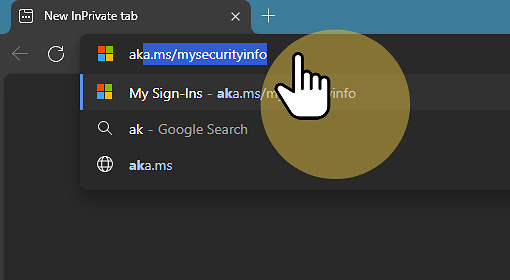
Open the Microsoft Edge web browser and go to the Microsoft My Sign Ins page at: https://aka.ms/mysecurityinfo
Click "edge://newtab/?startpage=1"
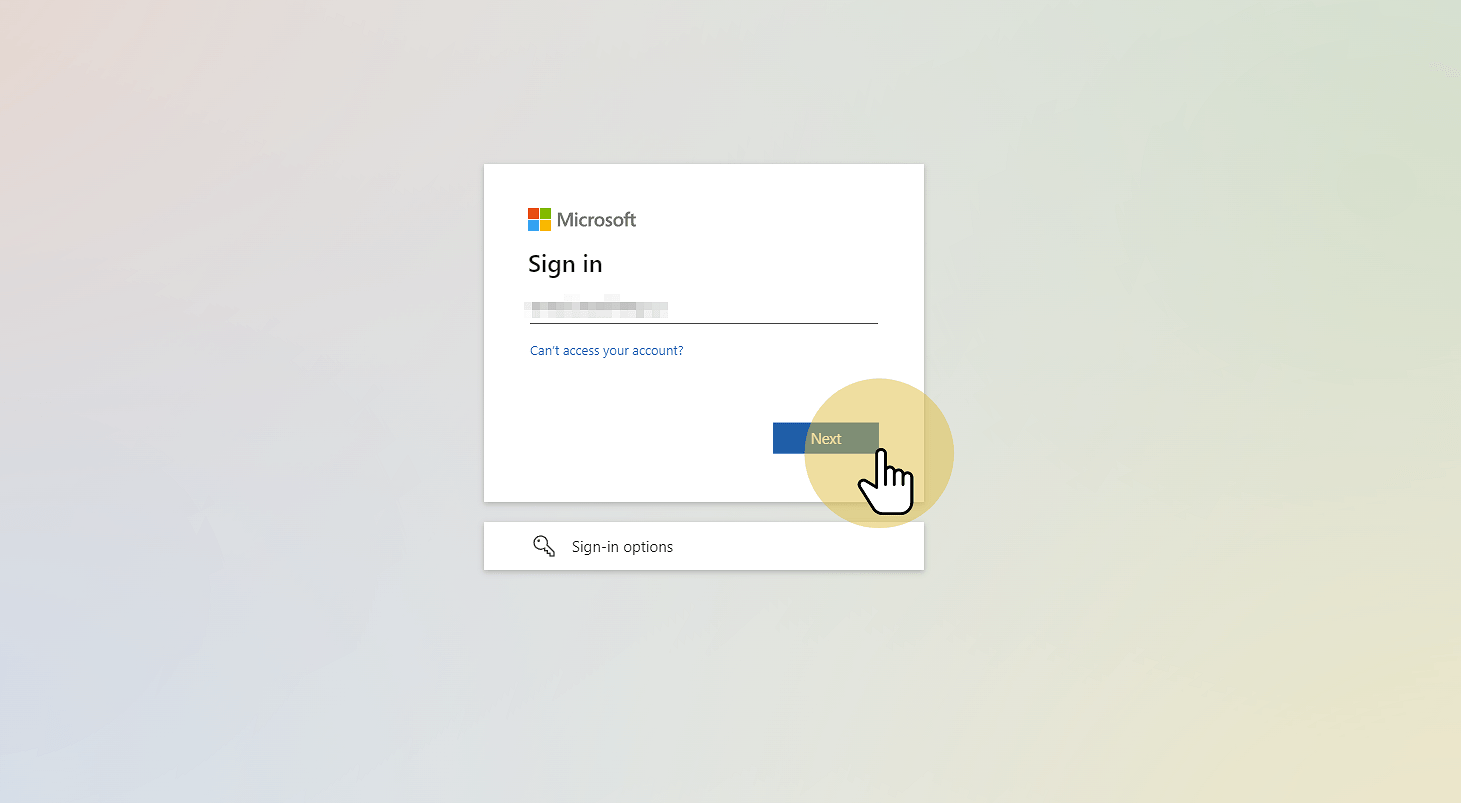
2. Type in your TNTP email address and click "Next".
Click "Next"
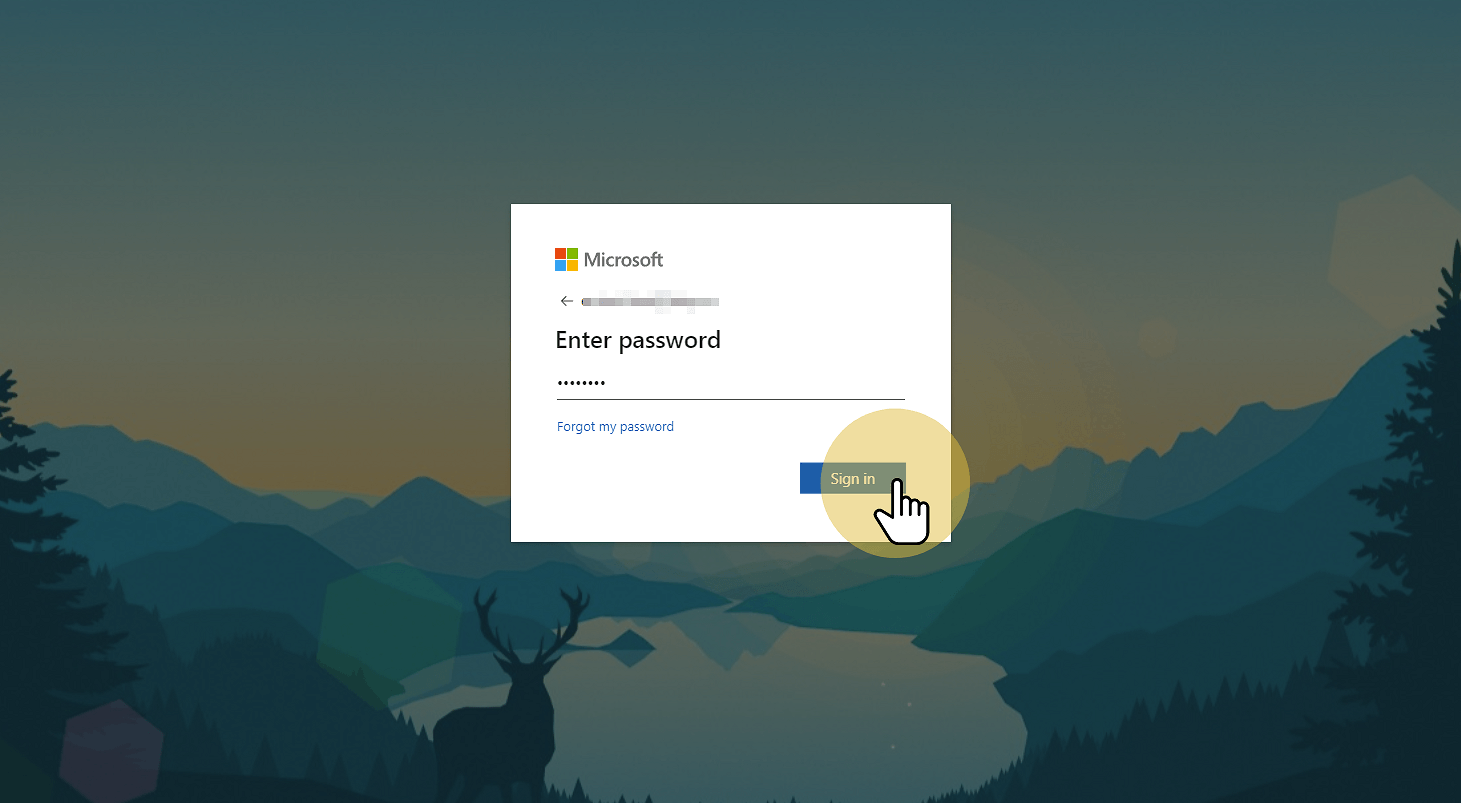
3. Enter the TAP password you received in your 9/19 email and click Sign in.
Use the TAP password you received in your email and click "Sign in"
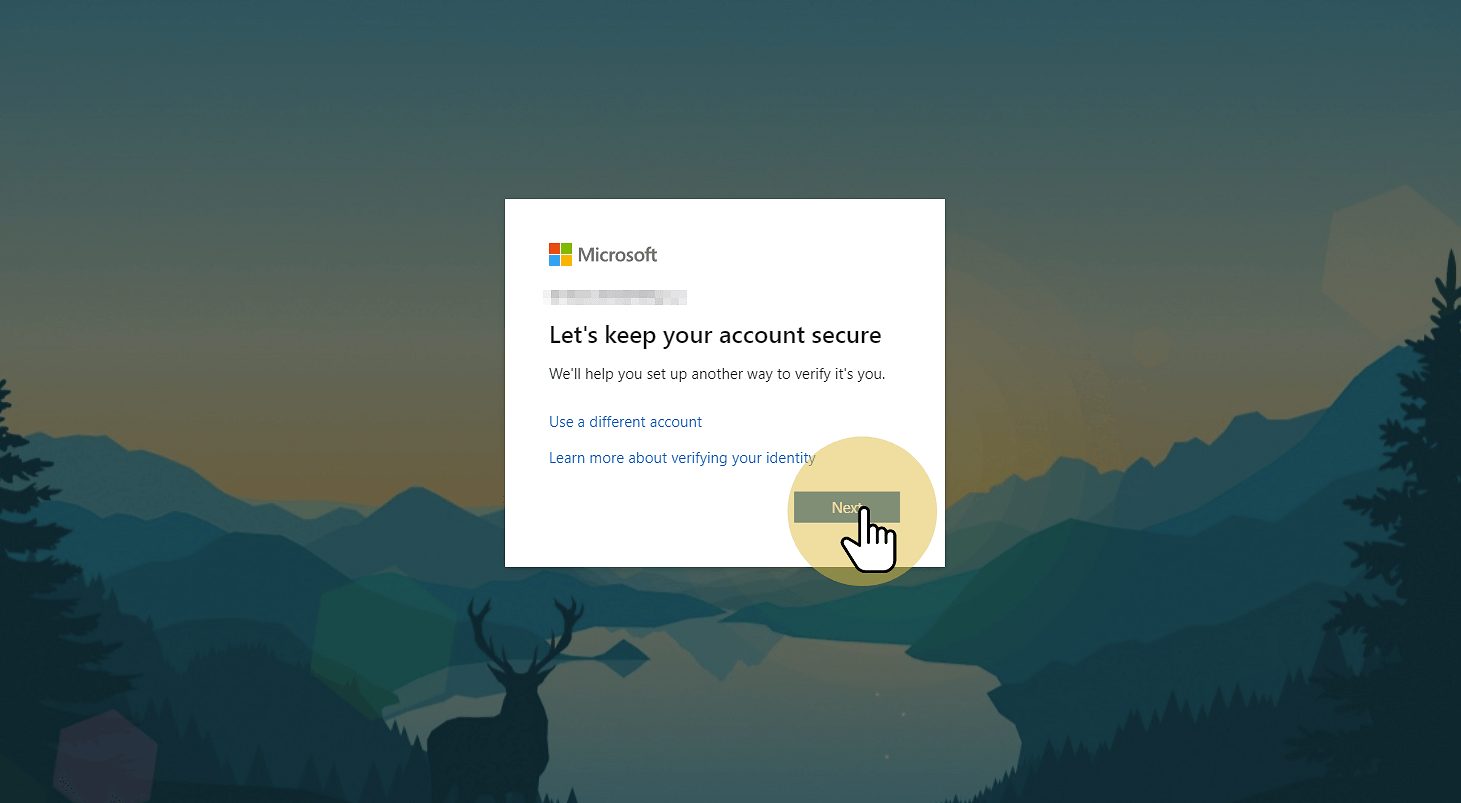
4. On the "Microsoft: Let’s Keep your account secure" webpage prompt, click "Next".
Click "Next"
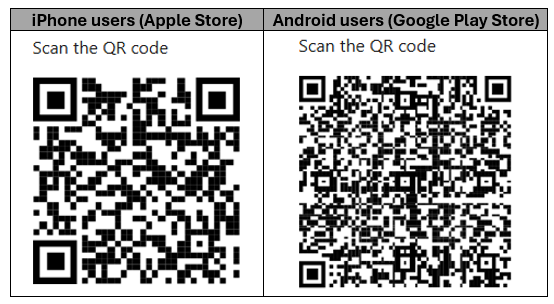
5. At the “Microsoft Authenticator: Start by getting the app” webpage prompt, use your personal phone to download the Microsoft Authenticator mobile app by scanning the appropriate QR code below with the phone’s camera. If you wish to use the corporate iPhones, the “Authenticator” app is pre-installed.
Click "Download Microsoft Authenticator app"
6. Open the "Authenticator" app on your phone. The app appears as follows:
Click "Download the app"
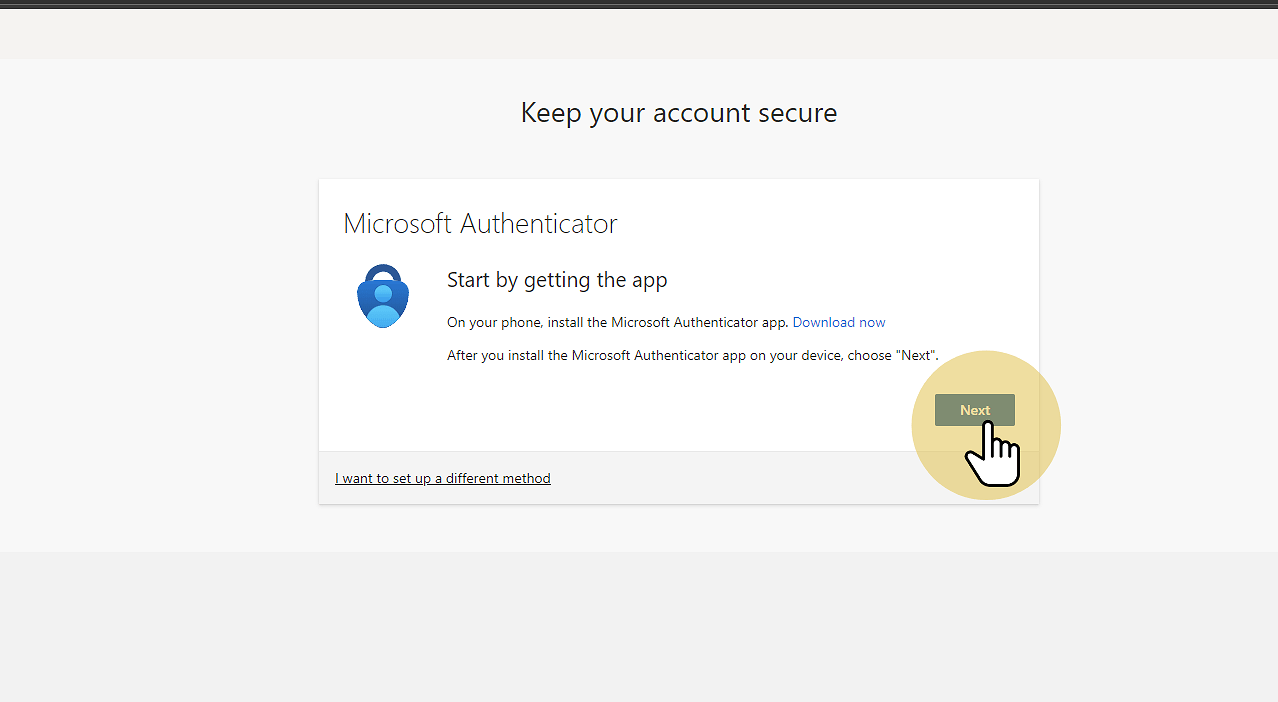
7. Back on the “Microsoft Authenticator: Start by getting the app” webpage prompt, click “Next”.
Click "Next"
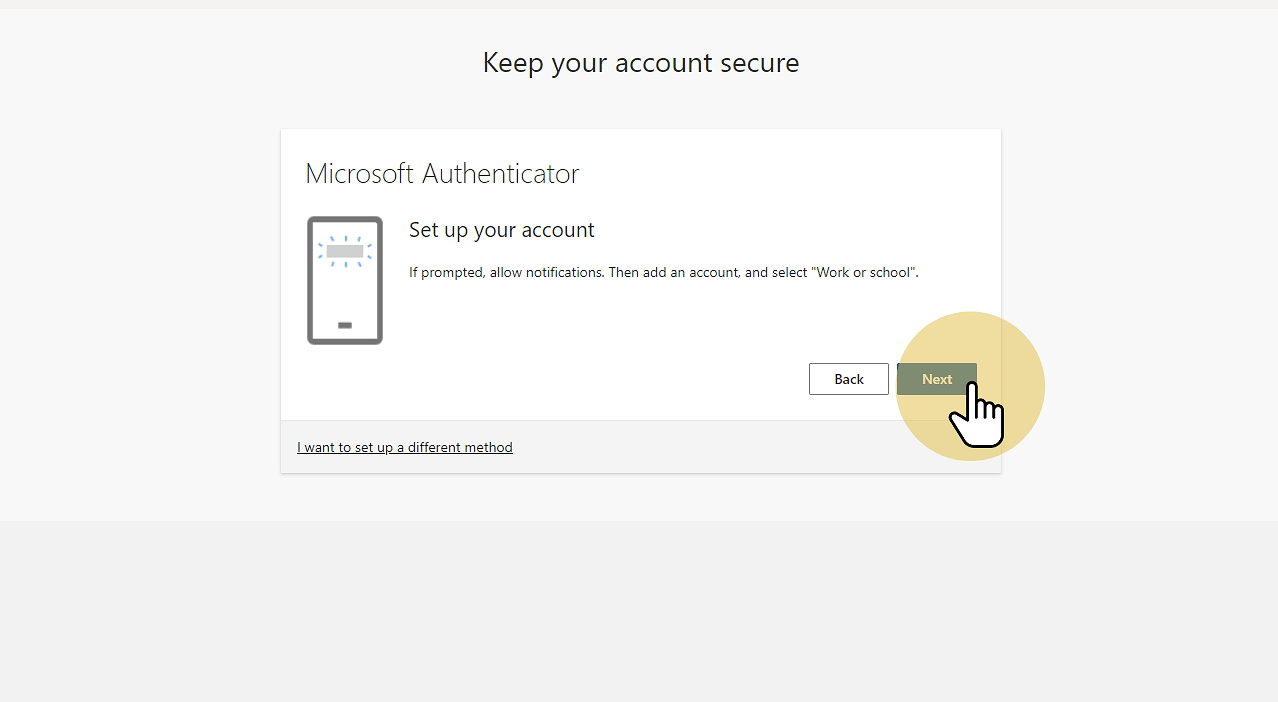
8. On the "Microsoft Authenticator: Set up your account" webpage prompt, click “Next”.
Click "Next"
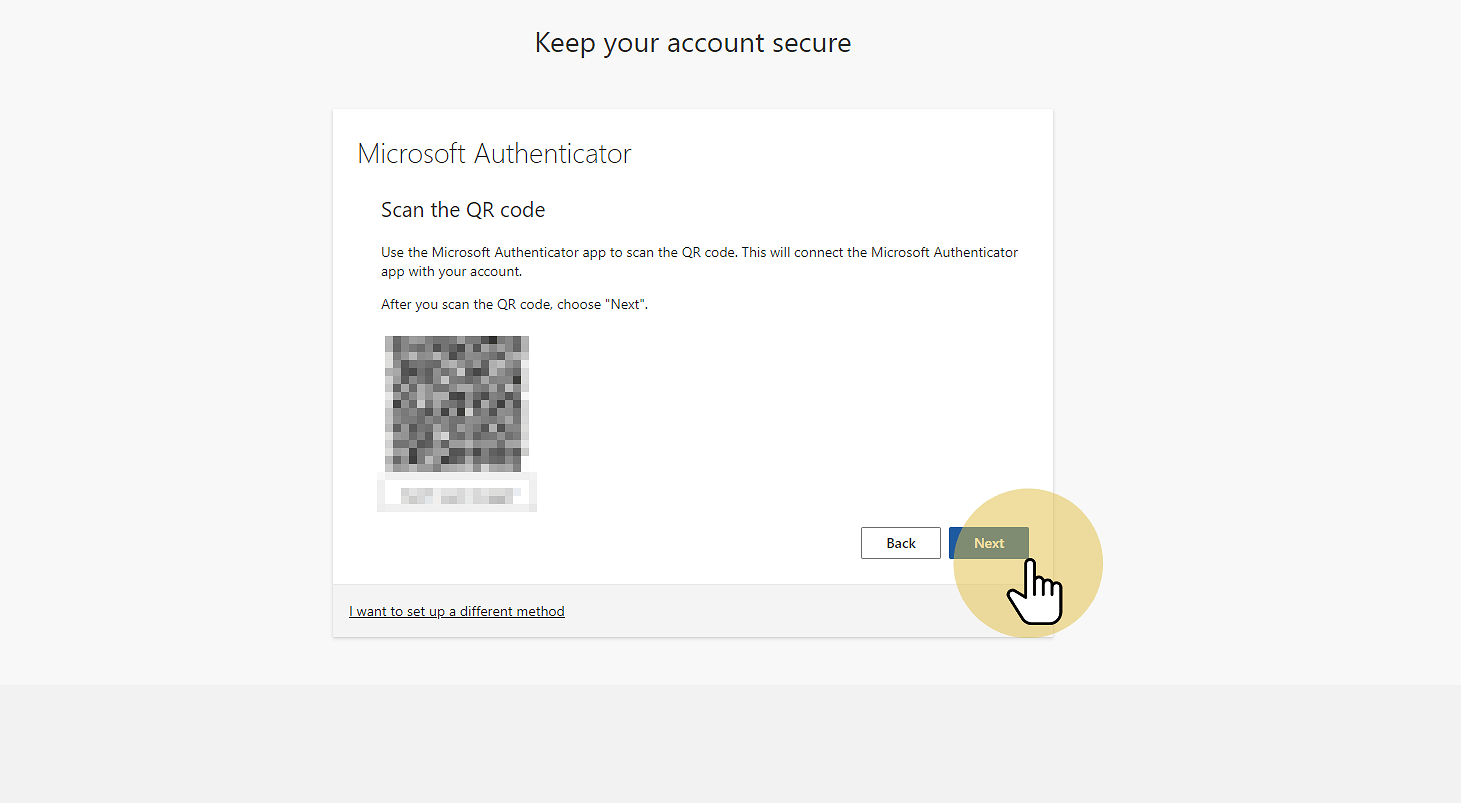
9. From the “Authenticator” app on your phone, select "Work or school account", then choose "Scan QR code" and scan the QR code displayed on the “Microsoft Authenticator: Scan the QR code” webpage prompt.
Click "Next"
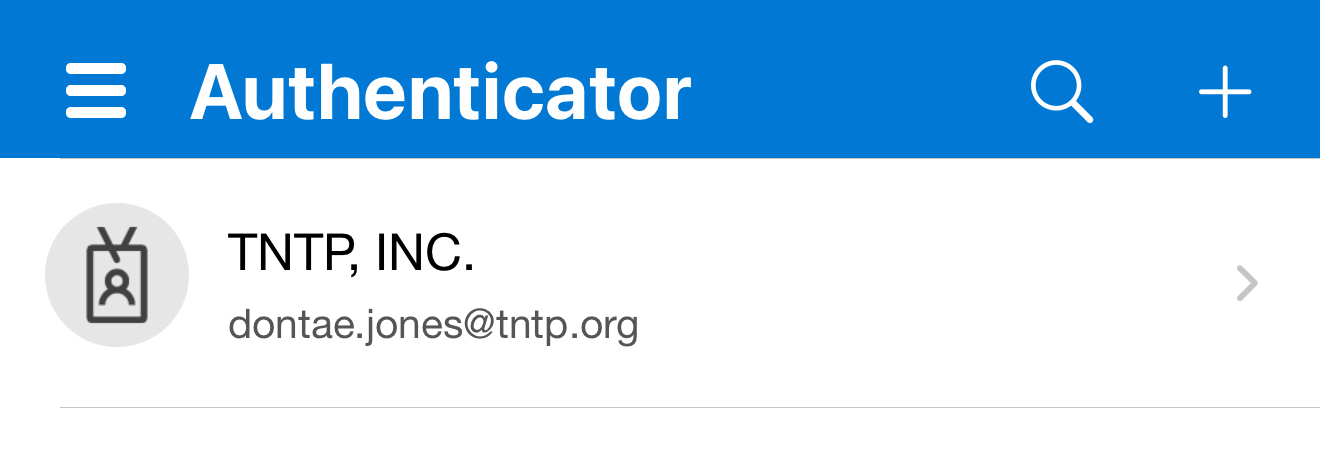
10. Once the account registration has successfully completed, the new "TNTP, INC. FirstName.LastName@tntp.org" account will display in the mobile app.
Click "Next"
11. Back on the “Microsoft Authenticator: Scan the QR code” webpage prompt, click “Next”.
Click "Next"
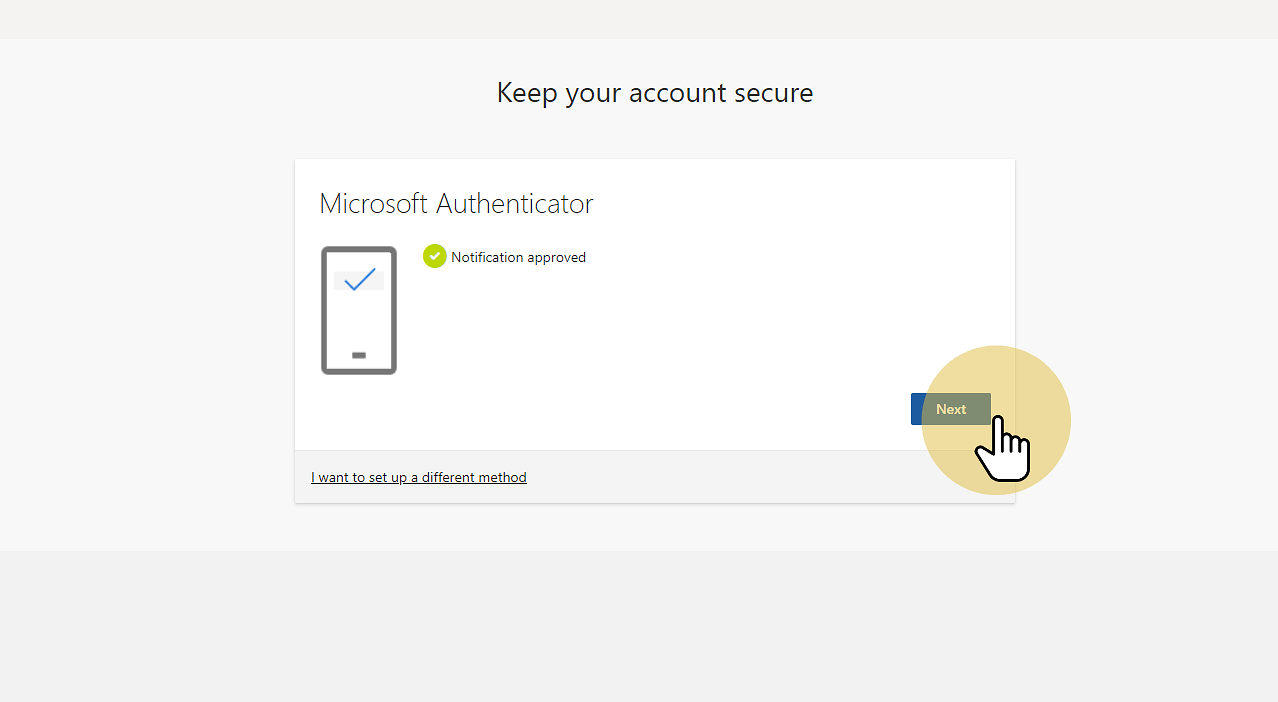
12. On the “Microsoft Authenticator: Notification approved” webpage prompt, click "Next”.
Click "Next"
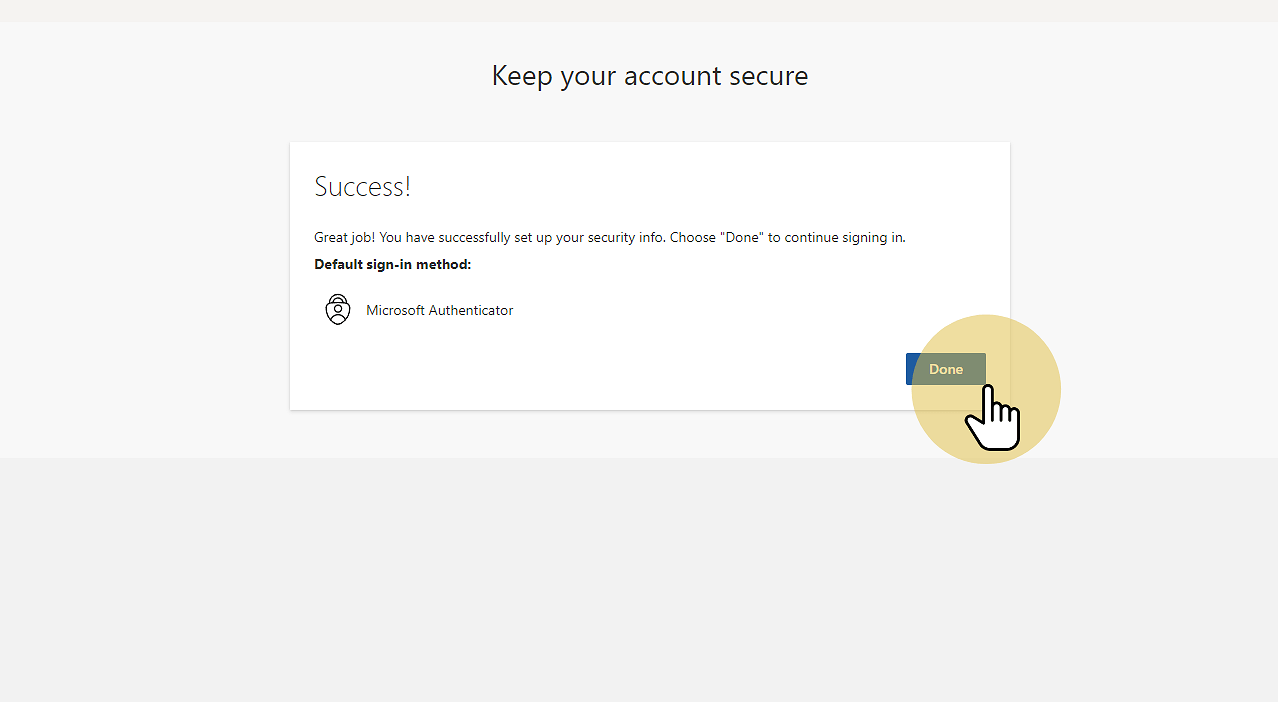
13. On the “Success!” webpage prompt, click “Done”.
Click "Done"
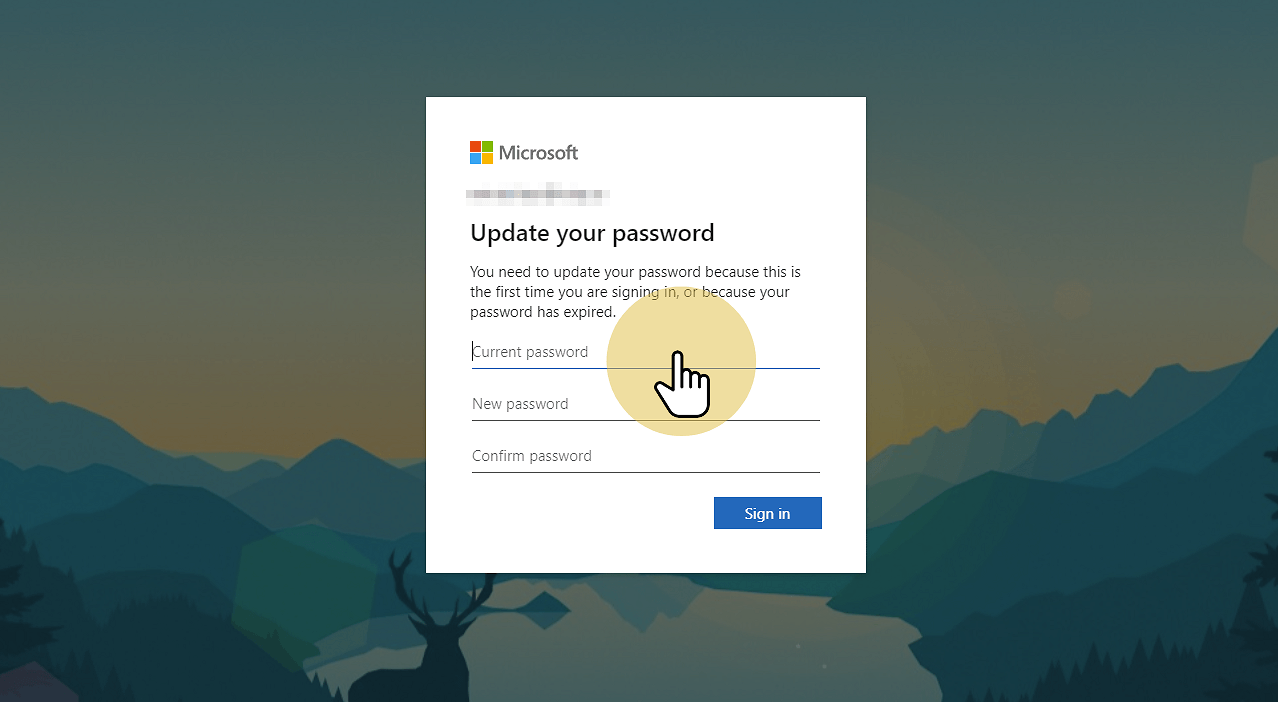
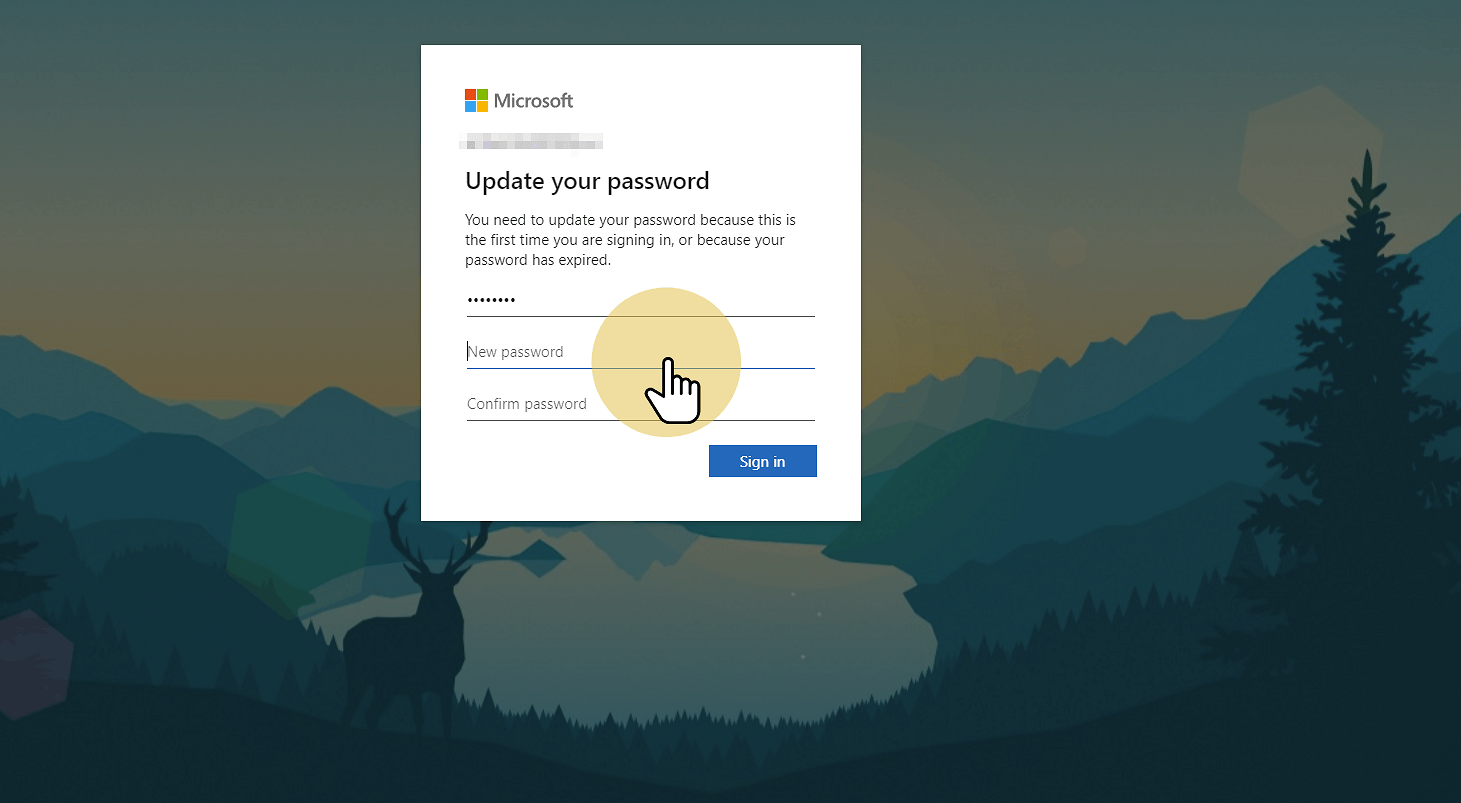
14. On the “Update your password” webpage prompt, enter the TAP in the Current password field.
Click "Current password"
15. Enter your most recent password in both the New password and Confirm password fields to continue use of your existing password. You can also create a new password.
The password requirements are:
  • Has to be between 8-16 characters
  • Contain at least 1 lower case letter
  • Contain at least 1 upper case letter
  • Contain a number between 0-9
  • Contain a special character such as: '-!"#$%&()*,./:;?@[]^_`{|}~+<=>
  • Cannot contain: spaces, username, common passwords
Click "New password"
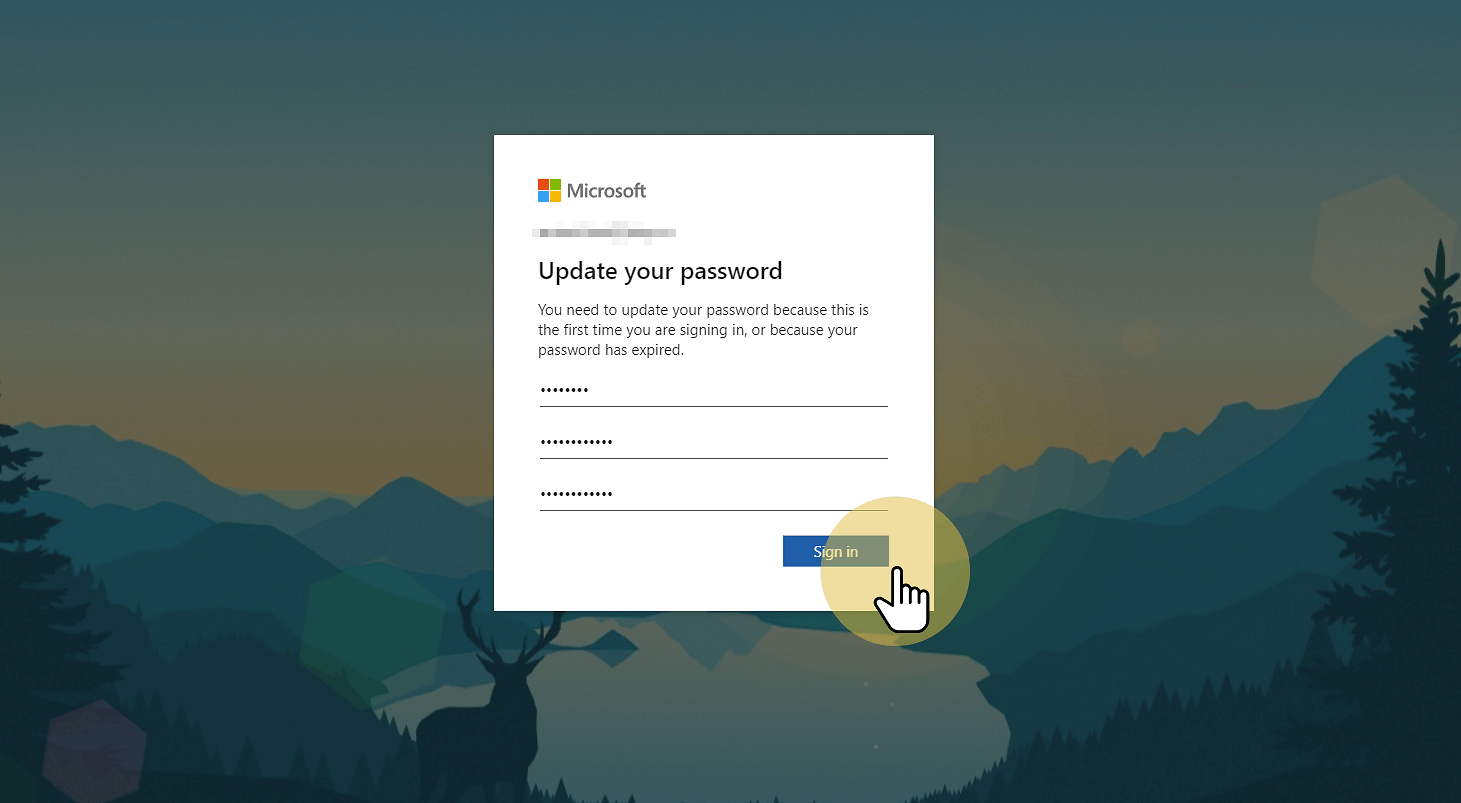
16. Click "Sign in".
Click "Sign in"
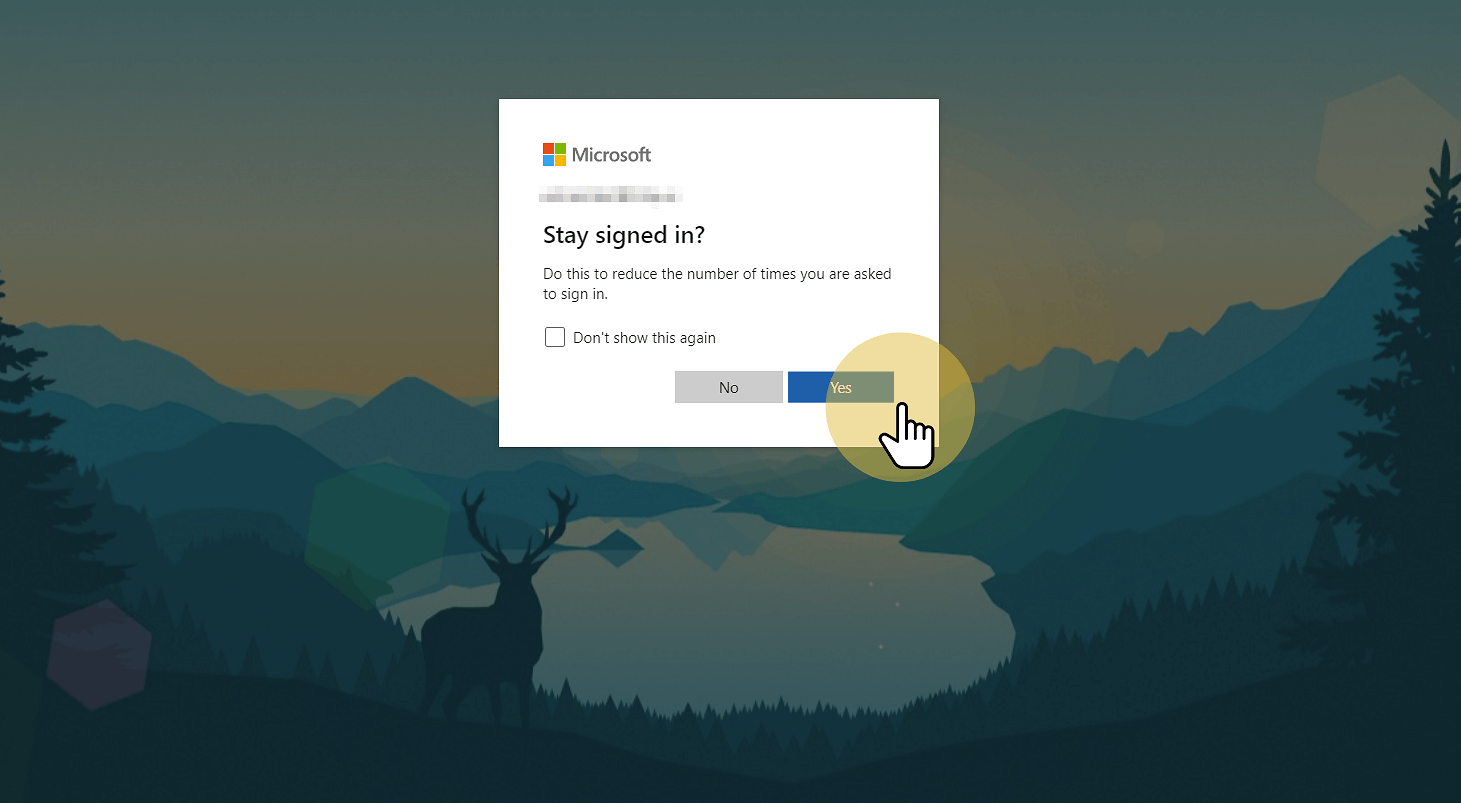
17. On the “Microsoft: Stay signed in?” webpage prompt, check the Dont show this again checkbox and click “Yes”.
Click "Yes"
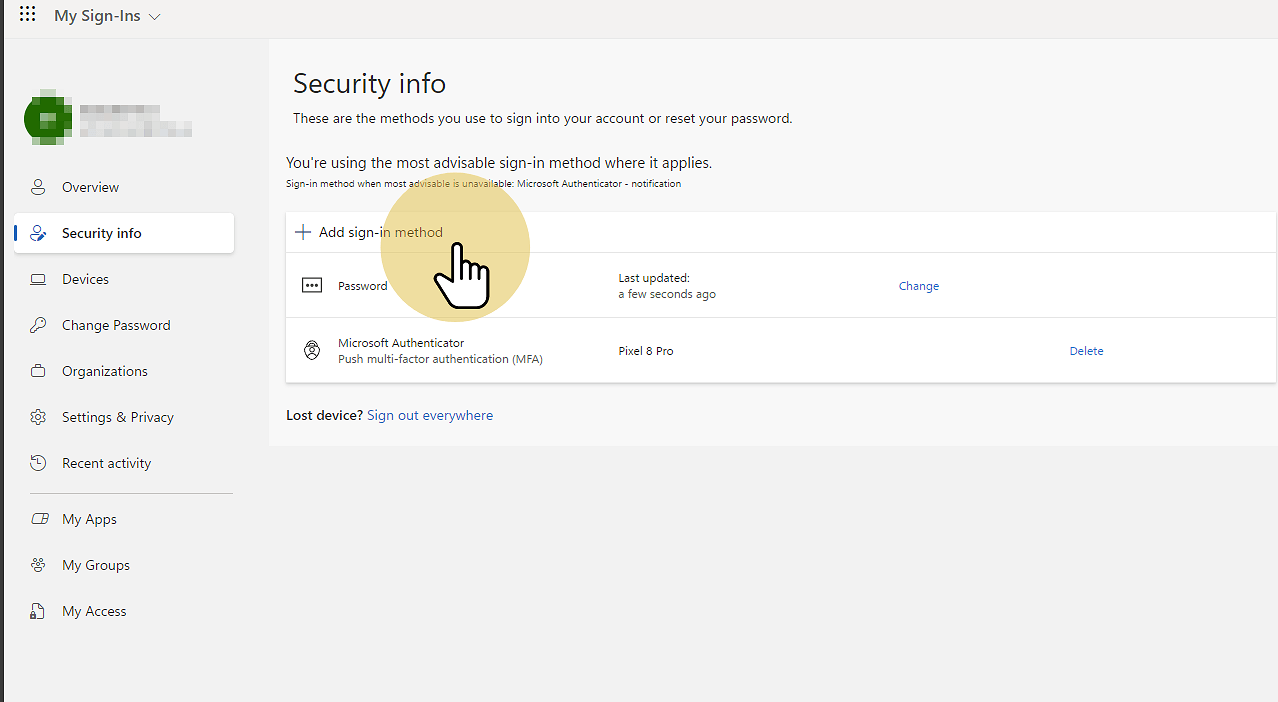
18. On the “My Sign-Ins” webpage, click the Security Info tab. You will now need to add a secondary, backup sign-in method. This will be used for Self Service Password Resets. We are currently allowing mobile phones as a secondary sign-in method.
Click "Add sign-in method".
Click "Add sign-in method"
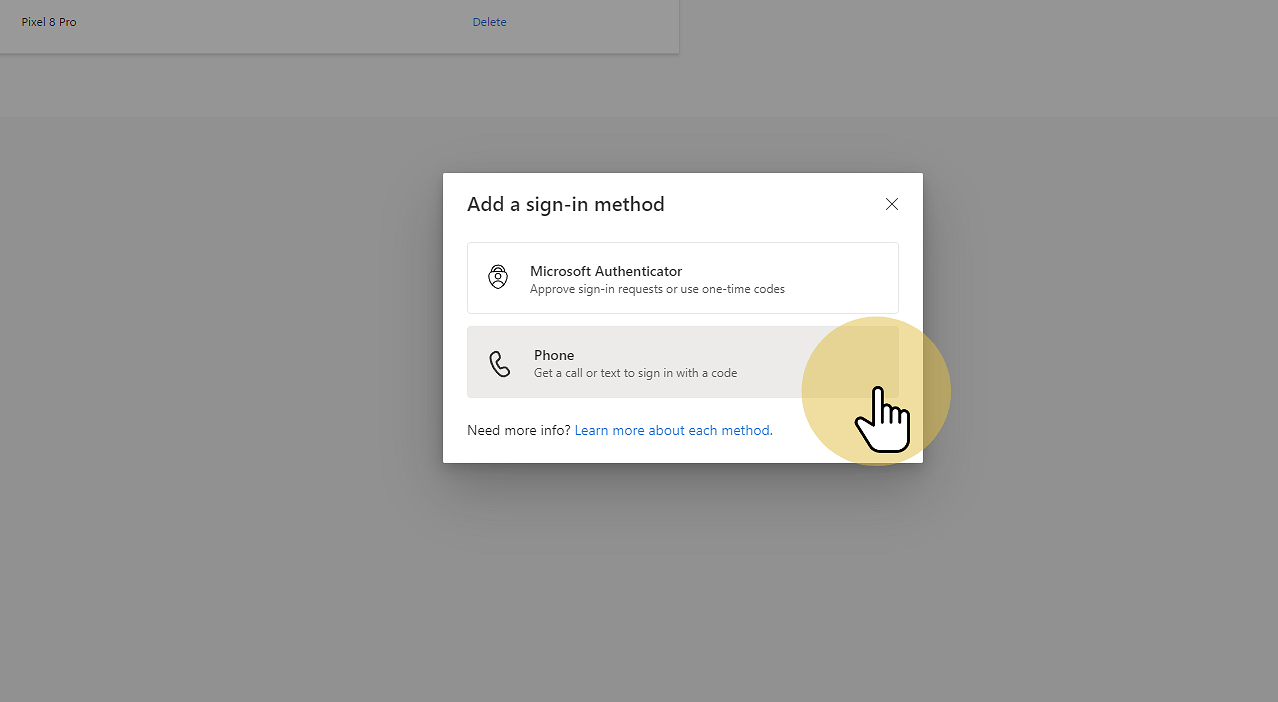
19. Click Phone.
Click here
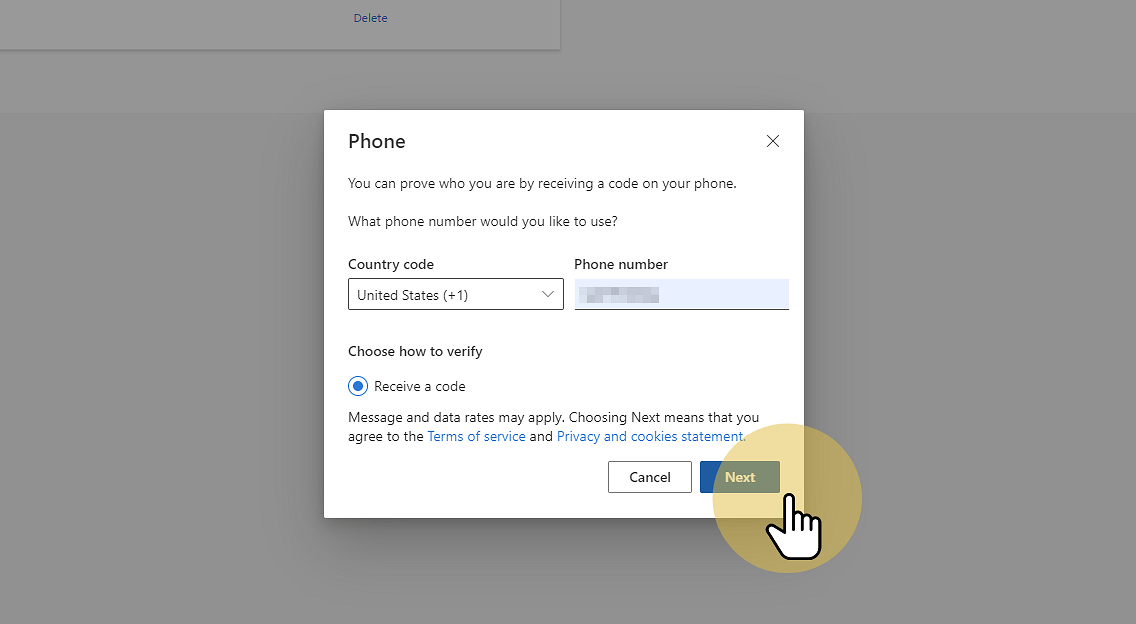
20. Enter your mobile phone number and click "Next".
Click here
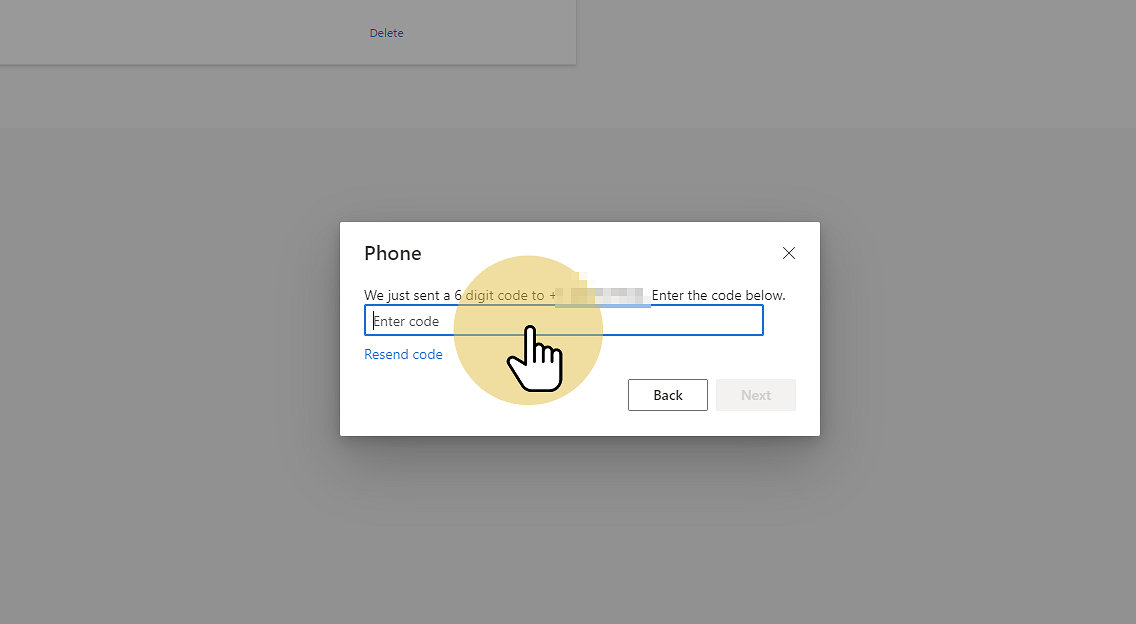
21. You will receive a confirmation code via TXT message on your phone. Enter the code and click "Next".
Click here
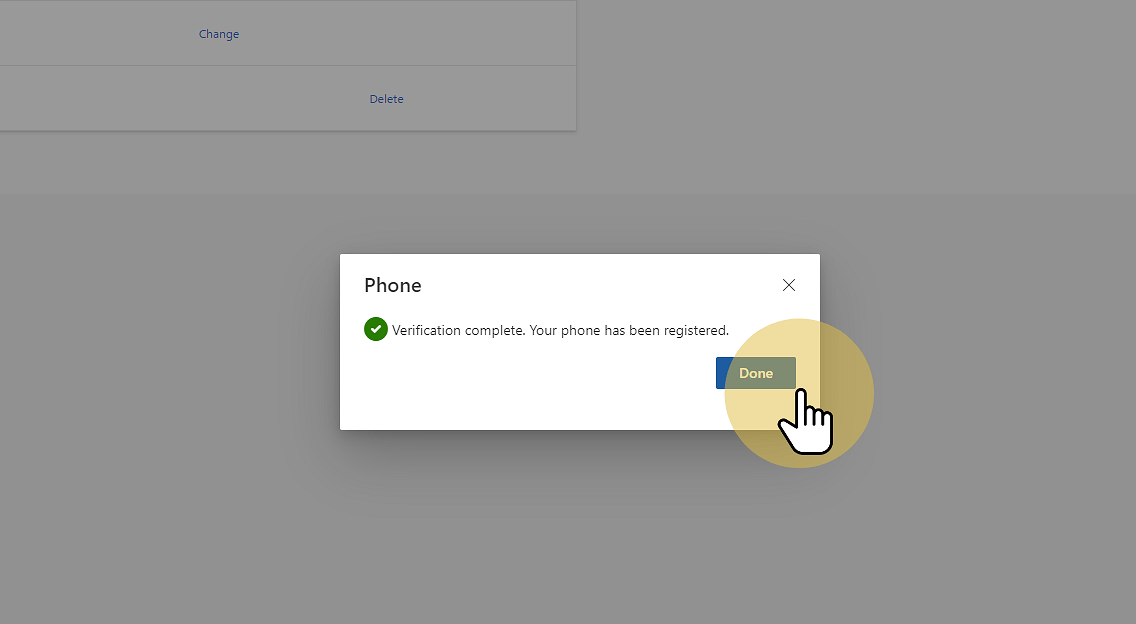
22. When the Phone verification is complete and registered, click "Done".
Click here
23. Next, launch the Microsoft Teams desktop app and sign in using the password created in Step 15. Once you successfully sign into Microsoft Teams, open the Outlook desktop app and allow Outlook to sync and receive the password from Microsoft Teams. Repeat this step for each remaining Microsoft 365 apps: Word, Excel, PowerPoint, and OneNote.

💡 If a yellow warning icon appears by your avatar in the upper right corner of Word, Excel, PowerPoint, or OneNote, click your avatar and select "Continue" to sync your updated password. The yellow warning icon will disappear upon closing and restarting the app.

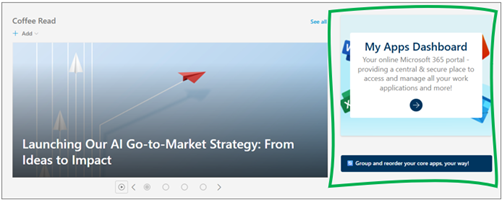
✅ Going forward, staff will access the Microsoft My Apps Dashboard via the TNTP Hub (https://tntp.sharepoint.com/sites/TNTPHub) > My Apps Dashboard button or by bookmarking the Microsoft My Apps Dashboard (https://myapps.microsoft.com).
Click here